AIReadyYet Blog
Stop Answering the Same 3 Questions: How to Build a 24/7 Digital Receptionist in 15 Minutes
You don't need complex AI to automate customer service. Build a simple traffic-cop bot that handles repetitive queries so you can focus on real work.
Affiliate disclosure
Editor's Note: I recommend tools I actually use or have vetted professionally. This post contains affiliate links for Tidio. If you use them to sign up for a free or paid account, I may earn a commission at no extra cost to you.
If I had a nickel for every time a small business owner told me, "I spend half my day answering the same three emails," I could retire today.
It's the classic SMB trap: You are trying to do high-value work (fixing a client's issue, baking the product, drafting proposals), but you are constantly interrupted by low-value questions.
- "How much does X cost?"
- "Do you travel to my town?"
- "Are you taking new clients?"
You can't ignore them—these are potential customers. But answering them manually is killing your productivity.
Many businesses think the answer is a "Frequently Asked Questions" page. But be honest: when was the last time you enjoyed hunting through an FAQ page?
Today, I'm going to show you a better way. We are going to build a simple, automated "Digital Receptionist" using a tool called Tidio. It's not some super-expensive, complex AI brain. Think of it more like a very efficient traffic cop that directs customers to the right answers automatically.
The "Big 3": Questions You Must Automate
Before we touch the software, we need to define the problem. Through my work analyzing small business operations, I've found that 80% of inbound distractions come from just five categories of questions.
These are not "Are you open?" questions (Google Maps handles that). These are sales objections—questions a customer asks right before they decide to buy.
- Pricing & Quotes: ("How much for a standard consultation?")
- Service Area / Shipping: ("Do you service the North County area?")
- Specific Service Availability: ("Do you fix Teslas?" or "Do you bake gluten-free?")
- Booking & Availability: ("How soon can you come out?")
- The "Emergency" Filter: ("I have an urgent issue, can I talk to someone now?")
If you automate the top 3, you aren't just saving time; you are capturing leads while you sleep.
The Solution: The "Traffic Cop" Bot
We are going to use Tidio to solve this. I like Tidio for SMBs because it has a "Visual Flow Builder." You don't need to write code; if you can draw on a whiteboard, you can build this bot.
We aren't trying to build ChatGPT here. We are building a simple decision tree. It looks like this:
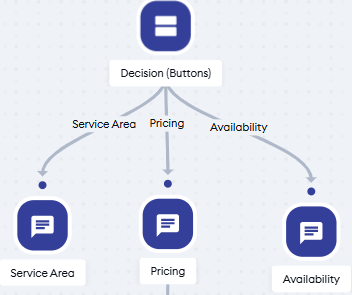
The goal is simple: Greet the customer, give them buttons for the top 5 issues, and provide an instant answer or capture their email for follow-up.
The Recipe: How to Set It Up
Setting this up takes about 15 minutes. Here is the basic process:
Step 1: Create your free Tidio account. Grab a free account here to follow along: https://affiliate.tidio.com/gtxvou5weurx
Step 2: Open the Visual Flow Builder. Skip the pre-made templates for now. We are going to start from scratch so you understand exactly how it works. (Found under Flows > My Flows)
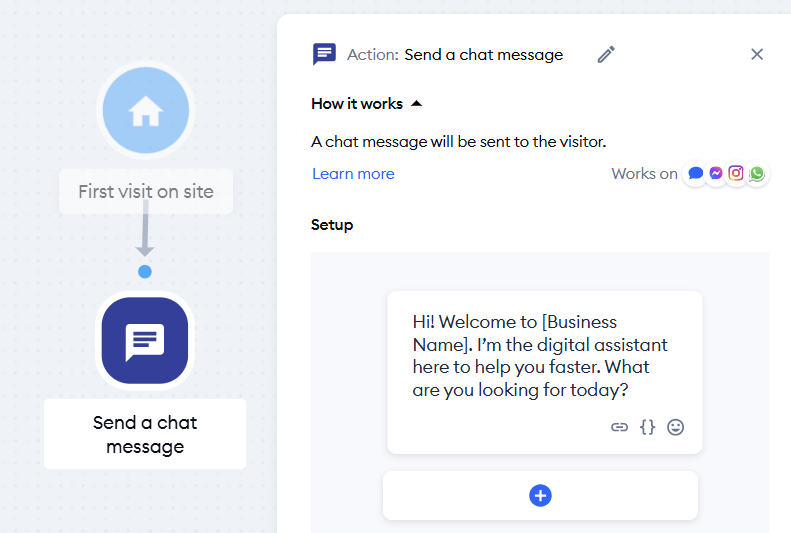
Step 3: The trigger and greeting. Set the bot to trigger immediately when a visitor lands on your site (first visit on site). Your first message should be welcoming but direct:
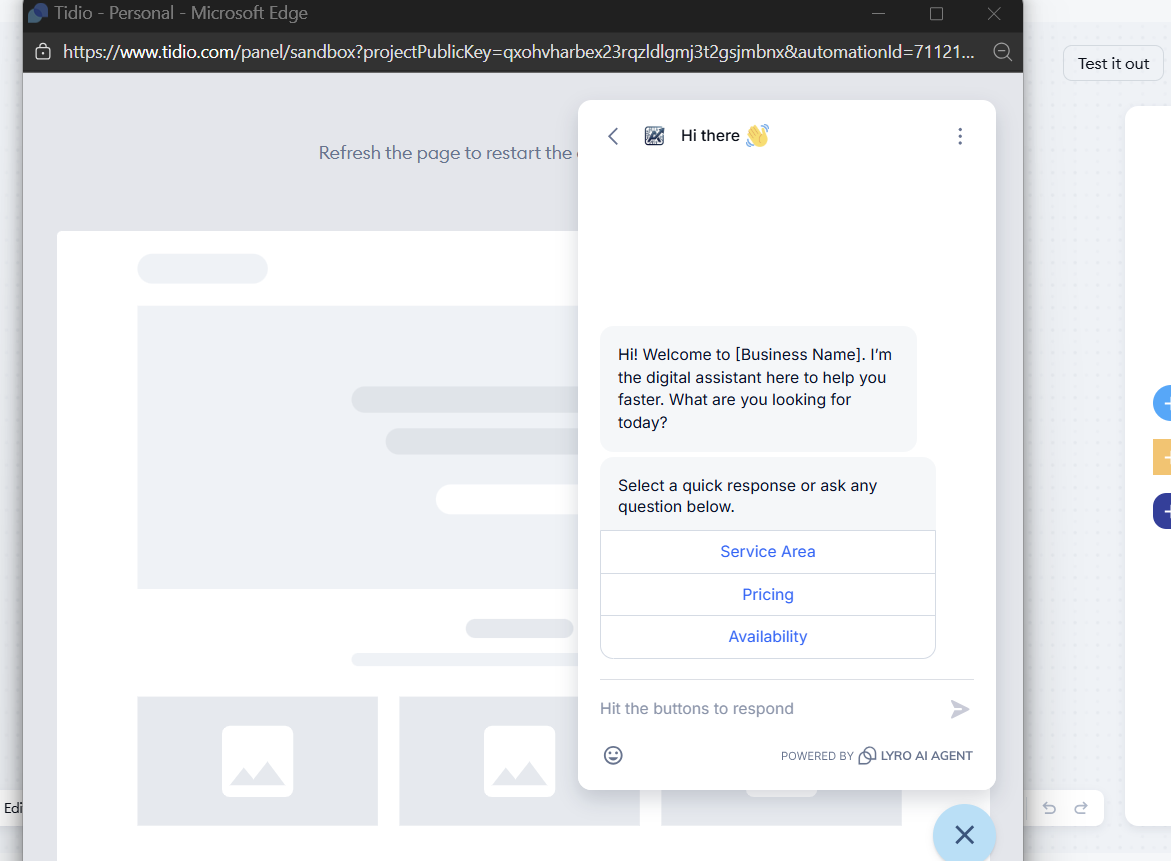
"Hi! Welcome to [Business Name]. I'm the digital assistant here to help you faster. What are you looking for today?"
Step 4: Add the decision buttons. This is the magic part. Instead of letting them type a confusing paragraph, give them buttons for your top 3 questions. Drag and drop a Decision (Buttons) and double click to add your top 3 questions.
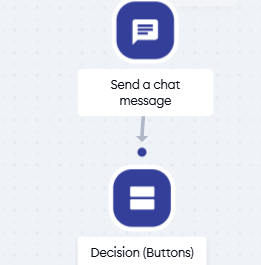
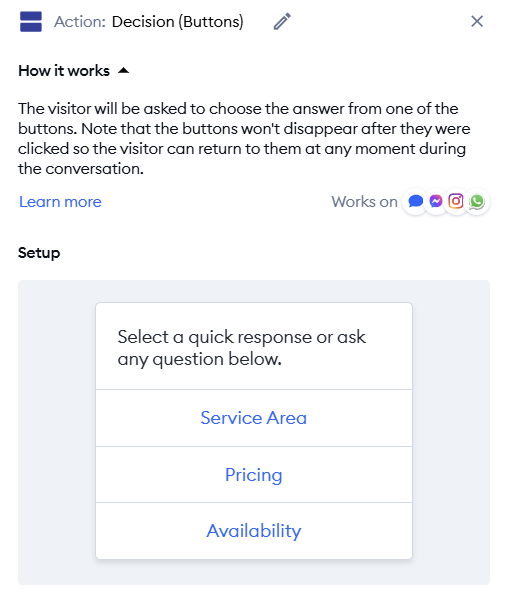
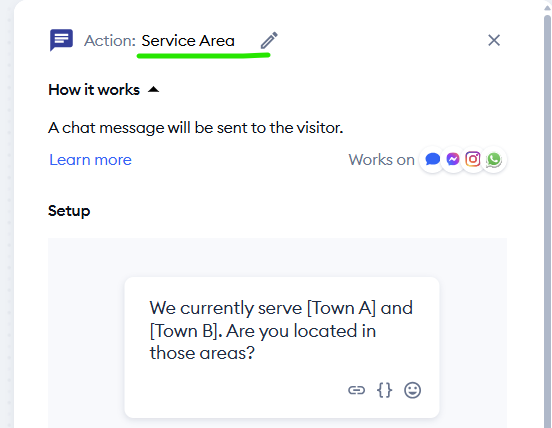
Step 5: Connect the answers. For each button, create a reply by dragging a Send a Chat Message and entering in the desired text.
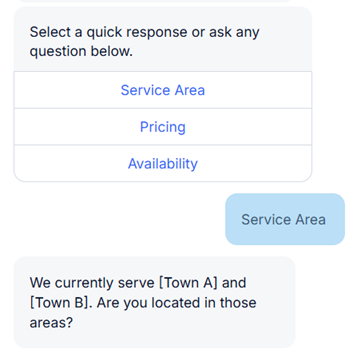
- If they click "Service Area", the bot immediately replies: "We currently serve [Town A] and [Town B]. Are you located in those areas?"
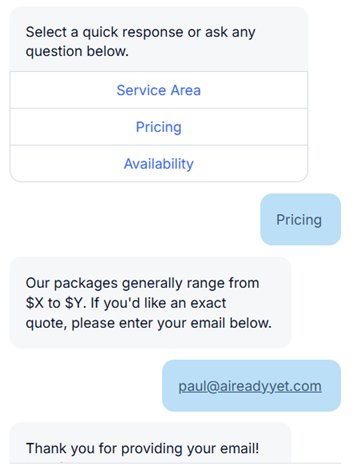
- If they click "Pricing", the bot replies: "Our packages generally range from $X to $Y. If you'd like an exact quote, please enter your email below."
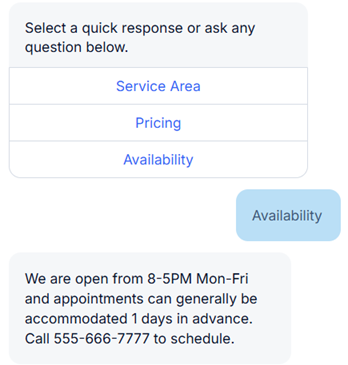
- If they click "Availability", the bot replies: "We are open from 8-5PM Mon-Fri and appointments can generally be accommodated 1 day in advance. Call 555-666-7777 to schedule."
You can rename the Send a Chat Message nodes so they are easy to see on the flow chart.
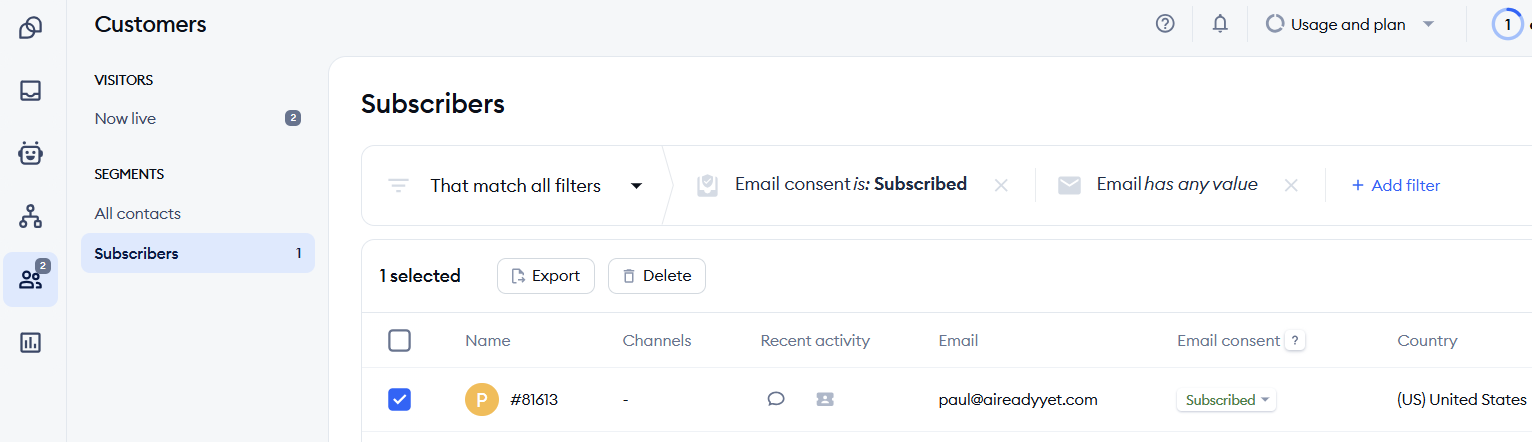
Notice how Pricing is asking for an email. That can optionally be connected to a Subscribe for Mailing node to capture an email to Tidio’s Customers > Subscribers where you can export to your CRM.

Why This Is Better Than a Phone Call
By setting up this simple "Traffic Cop" bot, you achieve two things a phone call or FAQ page can't do:
- Instant Gratification: The customer gets their answer at 11:30 PM on a Tuesday without waiting for you to open.
- Lead Capture: A phone call that ends with "Okay thanks, bye" is a lost opportunity. A bot that ends with "Enter your email for a quote" is a captured lead you can follow up with tomorrow.
Stop letting repetitive questions interrupt your real work. Set up your digital receptionist once, and let it run forever.
Test it out
While you are in the Flow Editor, you can click Test it out to see how it behaves before your publish to your site.
Train on your existing site data
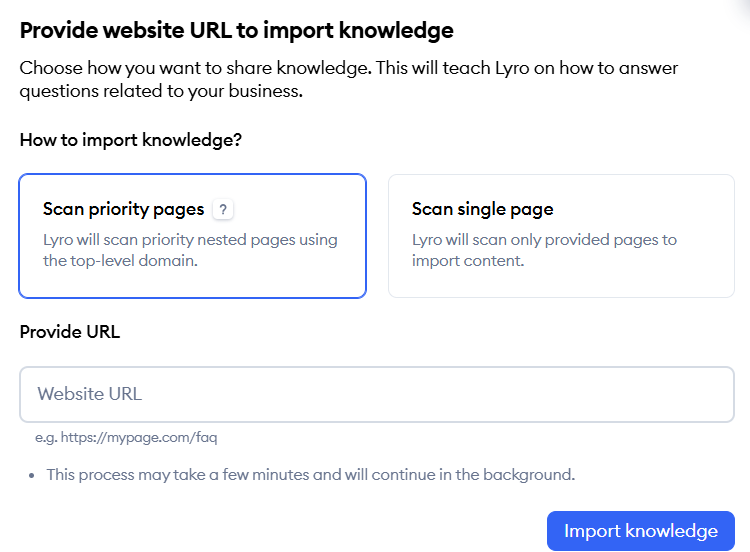
If you want the assistant to automatically answer questions based on information already on various pages of your site, you can add them under Lyro AI Agent > Knowledge Data Sources and simply click Add Knowledge and select Website URL to either crawl your site or only import a single page.
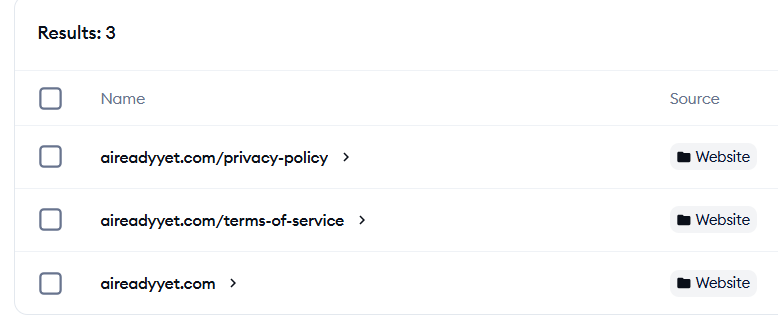
For example, I added three pages and within minutes it could automatically answer custom questions. It even allows adding and refreshing pages after you've published the assistant to your site.
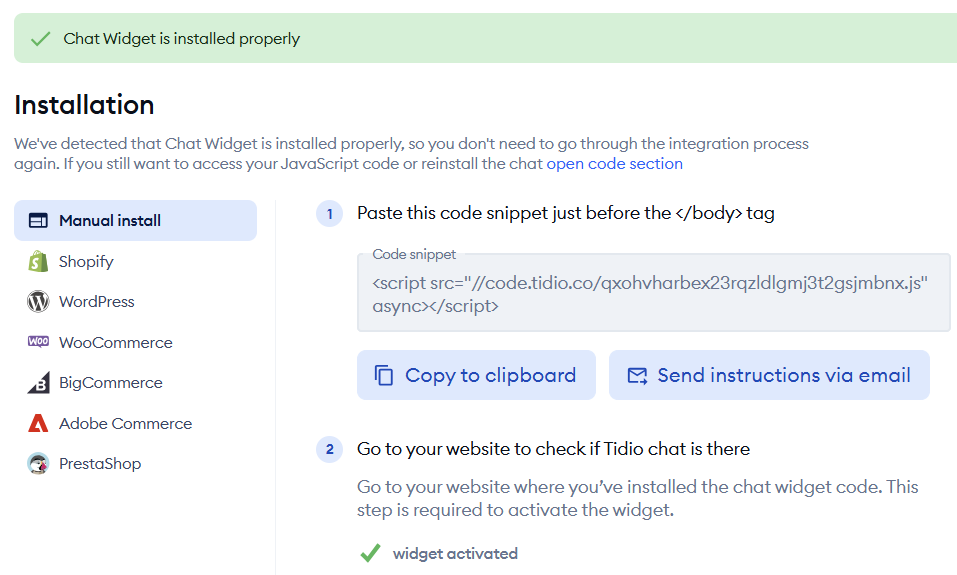
Installation
Go to Settings > Installation and copy the code snippet to your website. Once that is live, you will see a message in green.
Ready to build yours? Start with a free Tidio account here: https://affiliate.tidio.com/gtxvou5weurx
Have questions or feedback? Contact us at the link below.